# 数据预览

数据预览用来查看和编辑数据库中的数据，是功能强大且易用的数据库管理工具，类似[Prisma Studio](https://www.prisma.io/studio)的可视化编辑器。无论你是数据库管理员、开发人员还是初学者， 它都提供您需要的一切，包括CURD、跨表浏览、过滤、分页等，以有效地处理数据。

## 数据模型

下述为本文档对应数据模型的Prisma schema，了解更多请前往[prisma文档](https://www.prisma.io/docs/concepts/components/prisma-schema)学习。

```prisma
model todo {
  id           Int       @id @default(autoincrement())
  title        String    @db.VarChar(255)
  is_completed Boolean
  is_public    Boolean
  created_at   DateTime? @default(now())
  user_id      Int // 外键
  user         user      @relation(fields: [user_id], references: [id]) // 关联字段

  @@index([user_id], map: "todo_user_id_fkey")
}

model user {
  id   Int     @id @default(autoincrement())
  name String? @db.VarChar(255)
  todo todo[]
}
```

## 控制台打开
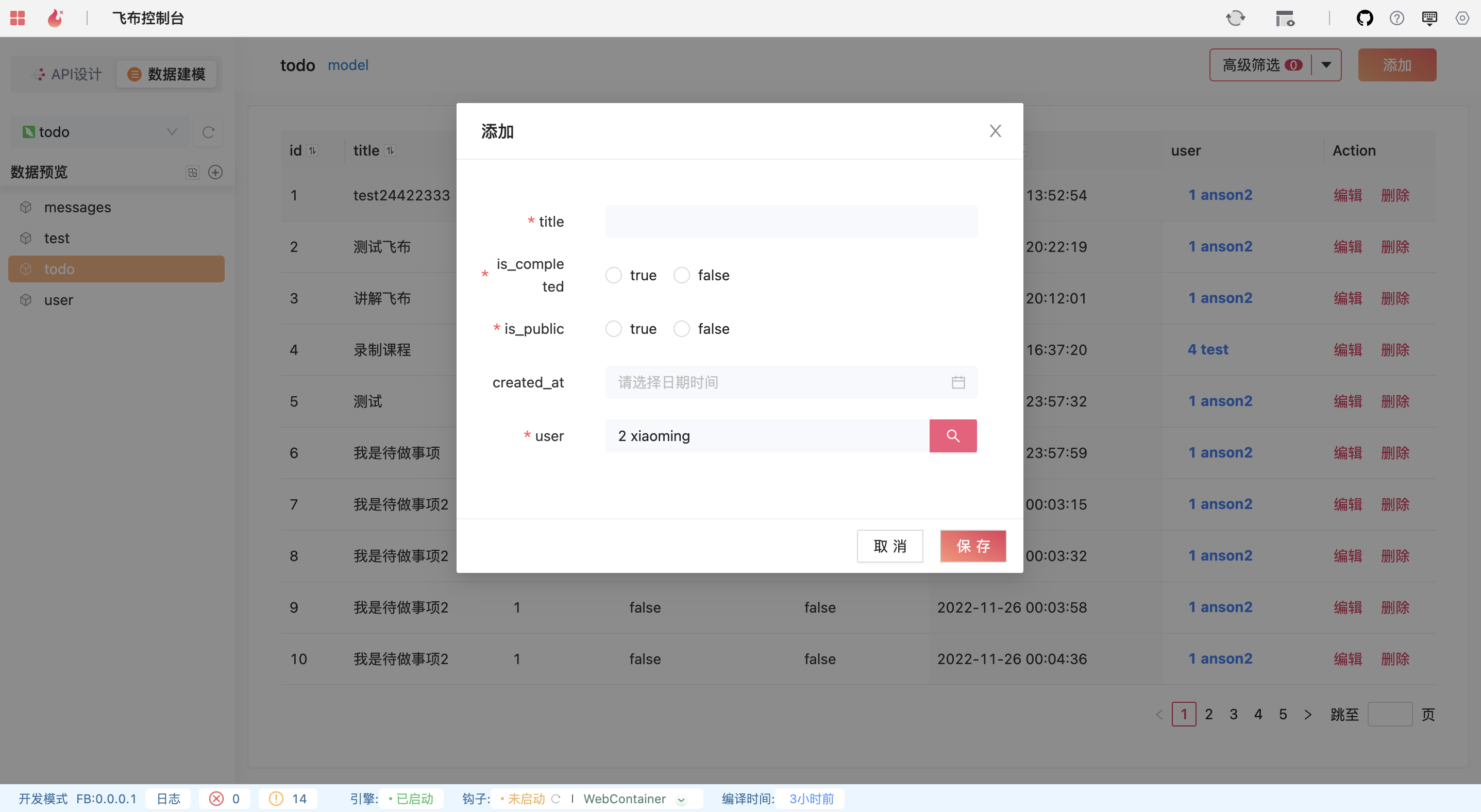
<figure><img src="/files/tER0TrYubeKgcahsBctI" alt=""><figcaption><p>数据预览</p></figcaption></figure>

1，切换到“数据建模”页签

2，选择数据源，例如`todo`数据库

3，选择数据表，例如`todo`表

4，查看对应数据

## 编辑数据

### 增加记录

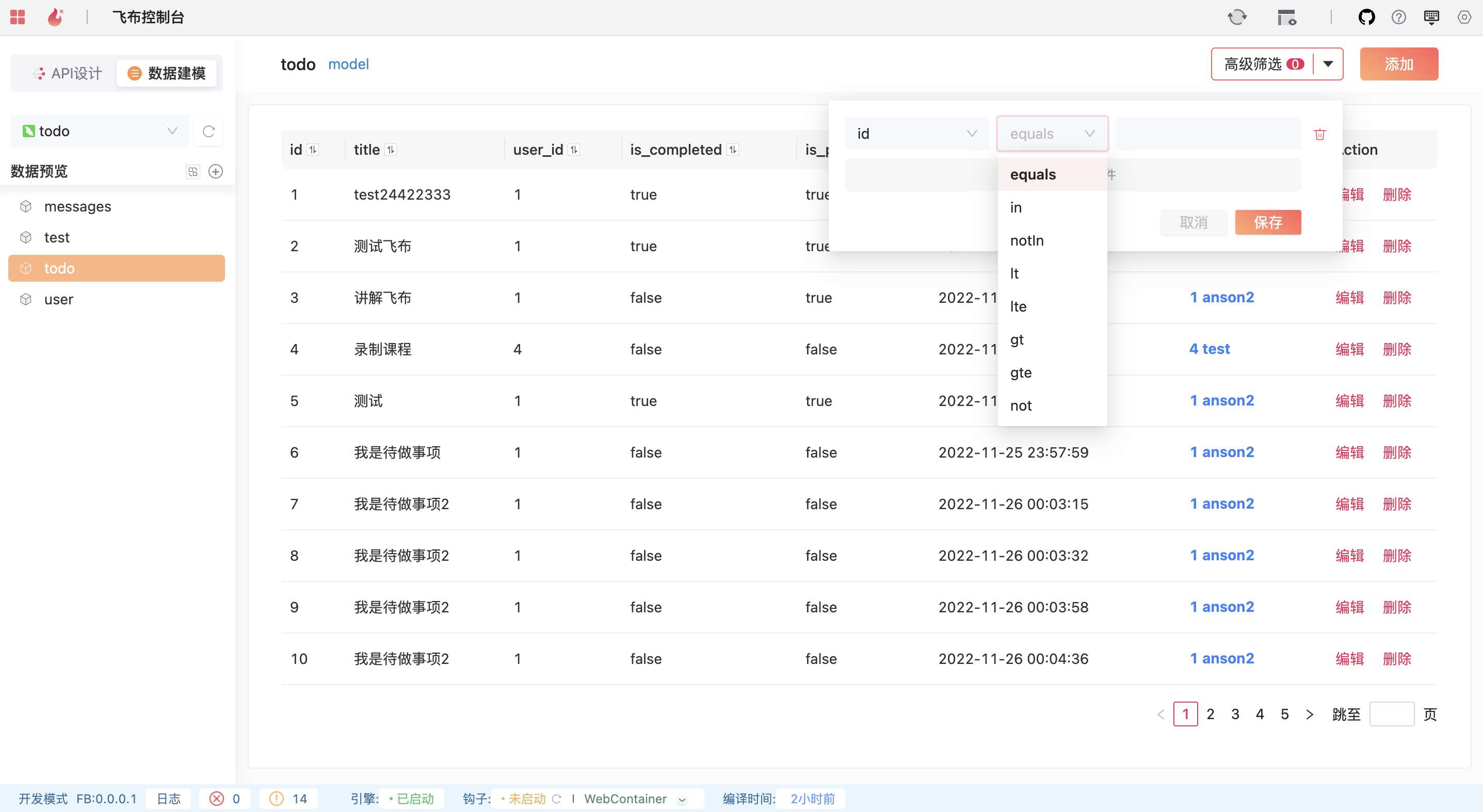
点击右上角“添加”按钮，在弹出的表单中录入数据，点击“保存”即可。

对于有关联关系的表，关联字段不可直接输入，需要从关联数据表中选择。

<figure><img src="/files/yLqtEmTNPmOzs0ozEXp1" alt=""><figcaption><p>新建记录</p></figcaption></figure>

### 编辑记录

点击记录后“Action”列的“编辑”按钮，在弹出表单中修改数据，点击“保存”即可。

### 删除记录

点击记录后“Action”列的“删除”按钮，在弹出弹窗中，点击“确认”即可。

## 过滤数据

### 高级筛选

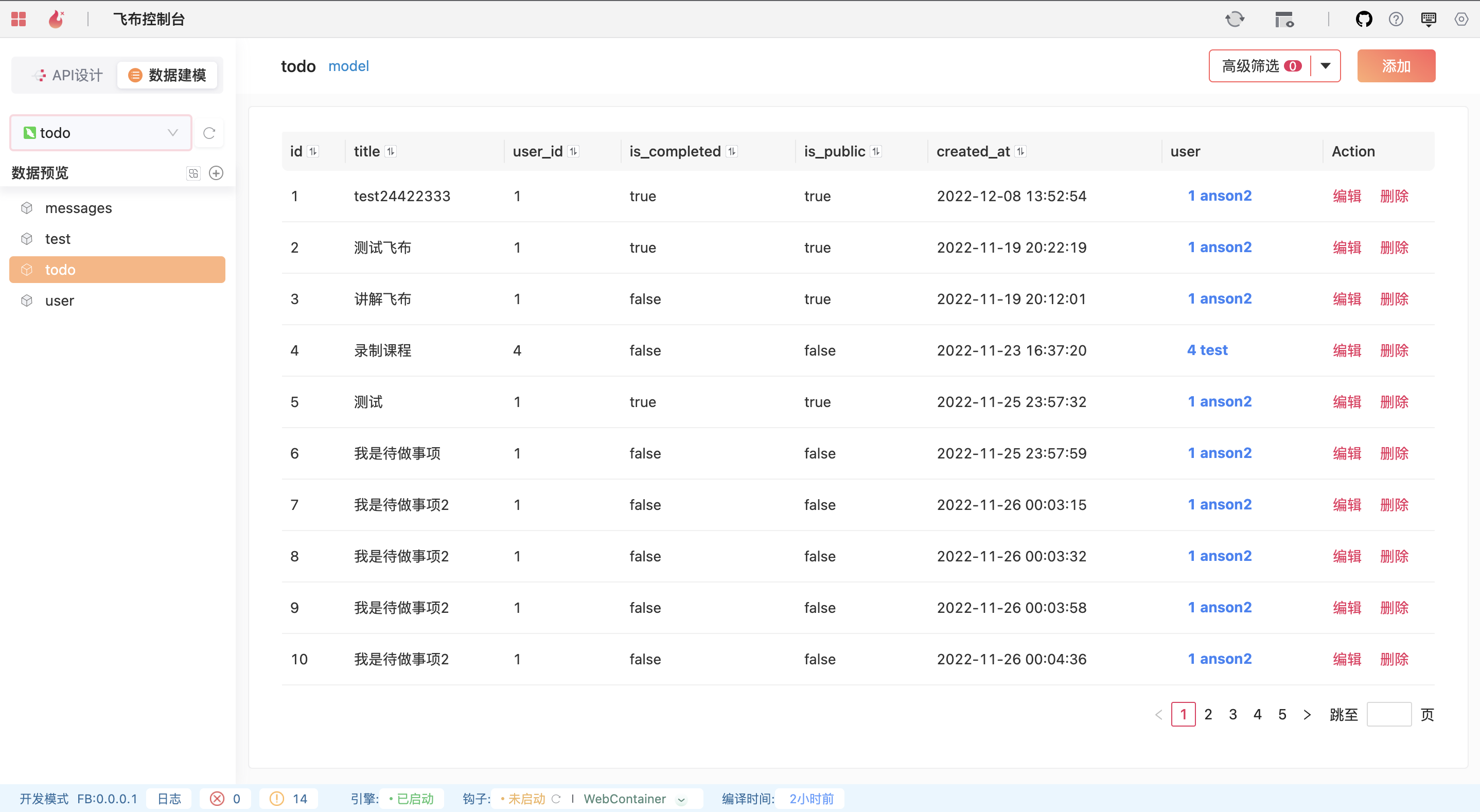
点击右上角”高级筛选“下拉框，新增筛选条件，第一列选择对应表的字段，第二列选择匹配条件，第三列输入匹配值。

<figure><img src="/files/fPcjKMy00VfO4i5KkOHl" alt=""><figcaption><p>高级筛选</p></figcaption></figure>

匹配条件含义：

| 规则     | 含义   | 备注                       |
| ------ | ---- | ------------------------ |
| equals | 等于   |                          |
| in     | 包含   |                          |
| notin  | 不包含  | not in                   |
| lt     | 小于   | less than                |
| lte    | 小于等于 | less than or equal to    |
| gt     | 大于   | greater than             |
| gte    | 大于等于 | greater than or equal to |
| not    | 非    |                          |

### 数据排序

在标题栏，点击字段名称后的”↕“符号，即可对该字段进行排序。

### 关联查询

点击关联字段的高亮展示，如`user`字段数据，可自动以`user_id`作为筛选条件，查看`user`表。


---

# Agent Instructions: Querying This Documentation

If you need additional information that is not directly available in this page, you can query the documentation dynamically by asking a question.

Perform an HTTP GET request on the current page URL with the `ask` query parameter:

```
GET https://docs.fireboom.io/v1.0/ji-chu-ke-shi-hua-kai-fa/shu-ju-yuan/shu-ju-ku/shu-ju-yu-lan.md?ask=<question>
```

The question should be specific, self-contained, and written in natural language.
The response will contain a direct answer to the question and relevant excerpts and sources from the documentation.

Use this mechanism when the answer is not explicitly present in the current page, you need clarification or additional context, or you want to retrieve related documentation sections.